
FreeWindows
My Screen Snipping Tool for Windows
5.0(9 reviews)
File Size
N/A
License
Free
Platform
Windows
Security
Unknown
Updated
Feb 2024
Review
My Screen Snipping Tool for Windows: Your Ultimate Screenshot Companion
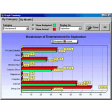
For Windows users who often find themselves needing to capture and share screenshots, My Screen Snipping Tool stands out as a highly efficient and user-friendly option. This productivity software is designed to simplify the process of taking screen captures, making it a valuable tool for presentations, documentation, and more.
Key Features
- Easy Selection: Quickly capture any part of your screen with a simple, intuitive interface.
- Customizable Screenshot Options: Choose from various screenshot sizes and formats (JPG, PNG) to suit your needs.
- Text Annotation: Add text directly to your captured images for enhanced clarity and context.
- Web Page Capture: Easily capture any web page, ensuring you can capture the exact content you need.
Use Cases
- Technical Support: Quickly share a problematic area on your screen with IT support teams.
- Documentation: Create detailed guides or tutorials by capturing and annotating important steps.
- Presentation: Enhance your presentations with relevant visuals by capturing key moments during your sessions.
- Content Creation: Share content from your desktop or web pages with your audience.
Pros and Cons
Pros:
- Intuitive User Interface: The software is straightforward to use, making it accessible for users of all skill levels.
- Flexible Format Options: Save your screenshots as JPG or PNG files, depending on your needs.
- Text Annotation Feature: Easily add text to highlight important details in your captures.
Cons:
- No Advanced Editing: While basic editing tools are available, more advanced editing features are not included.
Who It's For
My Screen Snipping Tool is perfect for individuals and teams in various professions, including:
- IT Professionals: For quick support and troubleshooting.
- Content Creators: To share and enhance content from their desktops or web pages.
- Students and Educators: For creating educational materials and sharing notes.
Tips for Maximizing Use
- Customize Your Hotkeys: Adjust the hotkeys to fit your workflow, making it even faster to take screenshots.
- Save Your Settings: Customize your preferred settings for different types of screenshots, saving them for future use.
- Explore All Options: While the basic features are sufficient, take some time to explore the more advanced options to get the most out of the software.
DownloadOfficial Website
Virus Scanned · Unknown
Version—
File SizeN/A
LicenseFree
PlatformWindows
OS RequirementsWindows 10
Updated2/27/2024
Ratings
5.0
9 reviews
5
4
3
2
1